The Tiger Exchange app is the mobile version of the exchange, built as a fast web app rather than a native download. Tap the site on your phone, add it to your home screen, and you get an app-style icon that opens straight into the betting interface. No Play Store hunt, no APK sideloading, no 50 MB download eating your storage. Just a clean mobile experience that launches with one tap.
The Tiger Exchange team decided against a native app for specific reasons covered in the next section. This page walks through why the browser-based approach exists, how to install it on Android and iOS, what it can do, and how it compares to the native betting apps you might be used to.
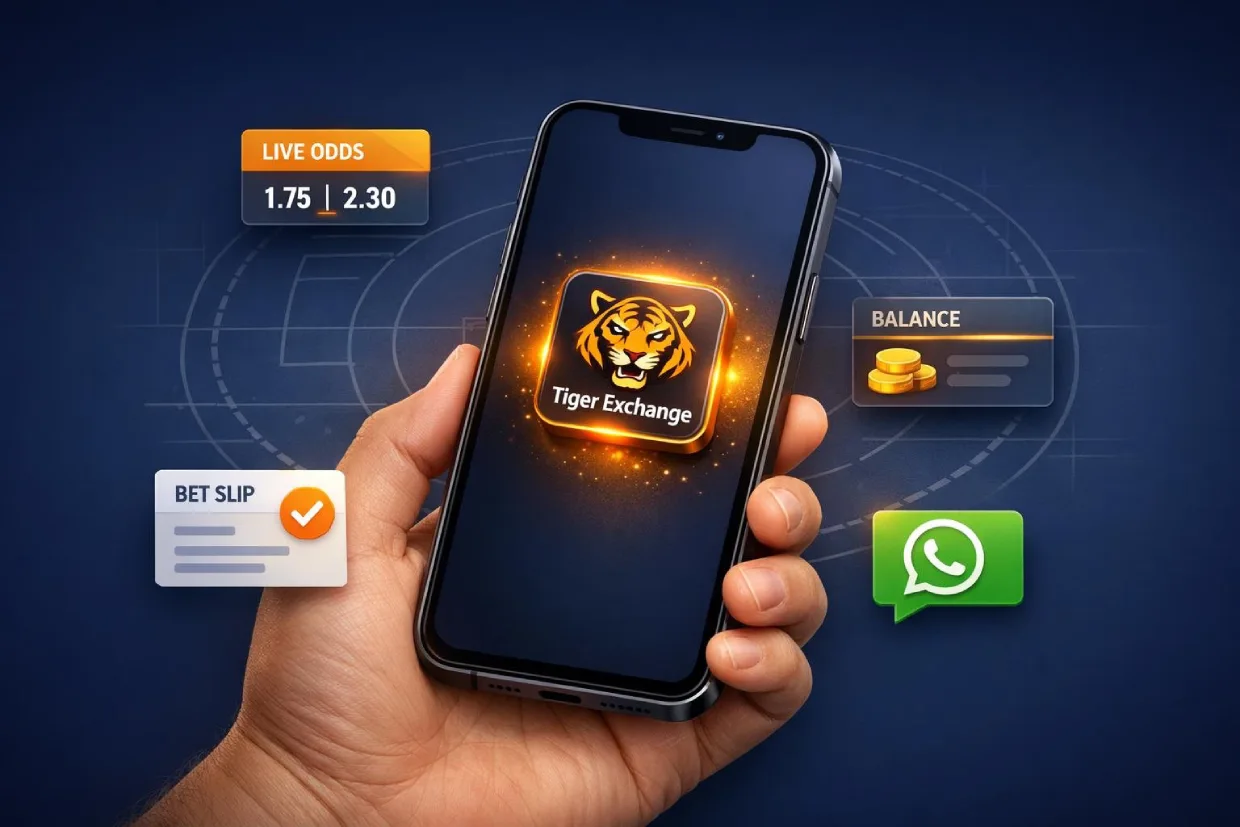
What the Tiger Exchange App Is and How It Works
The Tiger Exchange app is a Progressive Web App, or PWA. It loads inside your mobile browser first, then lets you save it to your home screen as a standalone icon. When you tap the icon, the app opens full-screen, without the browser address bar or tab clutter. Under the hood it’s the same www.TigerExchBiz.com website you’d reach on desktop, but the mobile experience feels like a dedicated app.
This matters because the exchange needs to push live odds updates ball-by-ball during matches. A PWA handles that as smoothly as any native app, and updates the moment the team ships changes, without you waiting for a Play Store approval or downloading anything new.
Why There’s No APK to Download
Native betting apps on Android typically come as APK files hosted outside the Google Play Store, because Google’s policies restrict real-money betting apps in India. That leaves users with two options: sideload an APK from a third-party link, or skip the native app entirely.
The approach here is the second one. Sideloading APKs carries real risk, unknown code, unknown signers, potential malware bundled in by sites impersonating the real brand. Running a PWA on TigerExchBiz.com removes that attack surface completely. You’re opening the real site in your real browser, with the same security that protects your banking and email.
Installing the Tiger Exchange App on Android
The install takes under thirty seconds. You only have to do it once per phone.
Step 1 Open www.TigerExchBiz.com in Chrome
Launch Chrome on your Android phone and navigate to TigerExchBiz.com. Chrome is the recommended browser because its PWA support is the most reliable on Android. Samsung Internet and Edge also work if you prefer either of those.
Step 2 Tap “Add to Home Screen”
Once the site loads, tap the three-dot menu in the top right corner. Look for “Add to Home screen” or “Install app” in the dropdown. Tap it, confirm the name of the shortcut, and Chrome places an icon directly onto your home screen.
Step 3 Launch the Tiger Exchange app
Tap the new icon. The app opens in full-screen mode, indistinguishable from a native app. You can now sign in, place bets, and manage your account the same way you would from the desktop site. If you haven’t signed up yet, the Tiger Exchange ID page covers the WhatsApp registration flow in under a minute.
Installing the Tiger Exchange App on iOS
iOS handles PWAs through Safari specifically. Chrome on iOS doesn’t offer the same Add to Home Screen behaviour, so stick with Safari for the install even if Chrome is your day-to-day browser.
Step 1 Open TigerExchBiz.com in Safari
Launch Safari, tap the address bar, type TigerExchBiz.com, and let the site load. Make sure you’re on a reasonably recent iOS version, because older releases handle PWAs with some quirks that newer versions have fixed.
Step 2 Use the share sheet to add to home screen
Tap the share icon at the bottom of Safari, the square with the upward arrow. Scroll through the share sheet until you find “Add to Home Screen.” Tap it, name the shortcut, and confirm. The icon appears on your home screen within a second.
Step 3 Launch from the home screen
Tap the icon. The app opens as a standalone experience, separated from your regular Safari tabs. You’re ready to log in. The Tiger Exchange login page covers the sign-in flow if you need a refresher on credentials and sessions.
What You Can Do With the Tiger Exchange App
The Tiger Exchange app gives you full parity with the desktop site. Nothing important is missing, which is the whole point of choosing a PWA over a stripped-down native build.
Live betting during matches
Watch odds shift in real time during IPL, international cricket, and other sports. Place bets ball-by-ball without reloading the page. The PWA maintains its connection efficiently, which matters when every second counts during live in-play markets.
Account management and history
See your balance, open bets, settled bets, and transaction history in the same tap-friendly layout as the desktop. No features hidden behind a “view full site” link, and no missing menus.
Deposits and withdrawals via WhatsApp
Request deposits and withdrawals by switching straight to WhatsApp from inside the app interface. The handoff is seamless because your phone already has WhatsApp installed and ready.
Performance and Connection
The Tiger Exchange app is designed to handle peak match traffic on standard 4G connections, not just Wi-Fi.
Load speed on first open
The first open after install takes slightly longer, usually two to four seconds on a decent connection, because the browser caches the shell of the app locally. Every subsequent open is close to instant, because the cached version loads before any network call even starts.
Match-hour stability
During IPL finals or high-profile international matches, the Tiger Exchange app is subject to the same traffic pressure as the desktop site. The PWA architecture keeps the user interface responsive even if the odds data takes an extra second to refresh. You won’t see the app freeze entirely.
Data Usage and Offline Behaviour
Data usage tracks closely with what you do on the app. Idle browsing is cheap, live betting is heavier because odds data streams continuously.
Expect roughly 10-15 MB per hour during live in-play betting with odds updating every second. Pre-match browsing, account management, and deposit or withdrawal flows use negligible data by comparison. A full weekend of matches typically lands under 200 MB if you spend most of the time watching live markets.
When you lose connection, the cached shell of the app still opens, but live data won’t update. Odds become stale immediately. Don’t place bets against cached odds while offline, because the actual market moves during that gap and your stake could settle against outdated pricing once you reconnect.
Troubleshooting the Tiger Exchange App
Most Tiger Exchange app problems have direct fixes you can handle in under a minute.
Home screen icon disappeared
If your icon vanished after a phone reset or major OS update, reinstall by repeating the Add to Home Screen steps above. Your account and session data aren’t affected because those are tied to your browser profile, not the icon itself. You’ll still be logged in when the reinstalled app opens.
Site won’t load inside the app
Close the app, open your regular browser, and check whether www.TigerExchBiz.com loads there. If it does, the PWA cache needs clearing. Open Chrome or Safari settings, clear cookies and site data for TigerExchBiz.com specifically, then relaunch from the home screen icon. For a step-by-step guide on Chrome, the Google Chrome help on clearing cache and site data walks through the exact menu path.
Auto-logout happening too often
PWAs sometimes clear their storage when the phone runs low on space, which kicks you out of the session. Free up some storage, log back in, and the app remembers you again. If it keeps happening, try switching to a different browser for the install, because aggressive storage cleanup varies between browsers.
Tiger Exchange App vs Native Betting Apps
Here’s how the PWA approach compares to traditional native betting apps available in the Indian market.
| Feature | Tiger Exchange app | Native betting app |
|---|---|---|
| Install method | Add to Home Screen | APK sideload |
| Storage required | Under 5 MB | 50-150 MB typical |
| Updates | Automatic, instant | Manual download each time |
| Security risk | Low, runs in browser | Higher, depends on source |
| Play Store availability | Not applicable | Usually blocked in India |
| Works on iOS | Yes | Often not supported |
| Account sync with desktop | Automatic | Often separate |
Adding the App to Your Phone Today
Three taps on Android, three taps on iOS, under thirty seconds either way. Open TigerExchBiz.com in Chrome if you’re on Android or Safari if you’re on iOS, tap the menu or share icon, choose Add to Home Screen, and confirm the name. The app icon lands on your home screen ready to launch. If you haven’t signed up yet, message support on WhatsApp for an ID first, then come back and install. Once you’re in, the Tiger Exchange cricket betting page walks through every market available on mobile.
Frequently Asked Questions
Can I download the Tiger Exchange app as an APK?
No APK is offered, and sideloading unofficial APKs from third-party sites is risky. The app runs as a Progressive Web App installed through your browser’s Add to Home Screen feature, which is safer than sideloading and requires no downloads.
Is the Tiger Exchange app safe to use?
Yes. Because it runs inside your browser rather than as a standalone download, there’s no unknown code on your phone. Your account and data stay protected by the same browser security you already trust for banking and email.
Does the app use more data than the website version?
Data usage is identical, because the app is the website, just rendered inside a standalone shell. Live betting uses around 10-15 MB per hour either way, non-live browsing uses far less.
Can I get push notifications from the Tiger Exchange app?
PWA push notifications work on Android out of the box. iOS now supports them in recent versions once the site is added to the home screen. Check your in-app notification preferences after login if you want match reminders or balance alerts.
What phones are compatible?
Any Android phone running Android 8 or later and any iPhone running iOS 15 or later handle the app well. Older devices technically still work but may feel slower during live betting when odds update rapidly on screen.
Do I need Wi-Fi or will mobile data work?
Either works. A stable 4G connection is enough for live betting. Wi-Fi is preferred for long sessions because it doesn’t eat into your mobile data allowance over the course of a full IPL weekend.
Will the app drain my battery during matches?
Live betting keeps the screen active and the connection streaming, which uses more battery than idle browsing. Expect active-use battery drain similar to watching a YouTube video. Plug in during long match sessions if your battery health isn’t great.
Can I use the same account across the app and browser?
Yes. The Tiger Exchange app and the browser site share the same account automatically. Any deposit, bet, or withdrawal made on one reflects on the other in real time with no manual sync.
How do I remove the app from my home screen?
Long-press the home screen icon and tap Remove or Delete, depending on your phone. This removes only the shortcut, not your account, so you can reinstall any time by repeating the Add to Home Screen flow. On iOS you may need to tap the small “x” in wiggle mode.
Does the Tiger Exchange app work on older phones?
The app runs on most phones from the last five years. Very old devices running Android 6 or earlier, or iOS 13 or earlier, may see slower load times during live betting. Updating your OS and browser to the latest version fixes most performance issues on aging hardware.